The first two articles in this series made the case for contextual remediation and explained the architecture that delivers it. This one is entirely practical. We will install DockSec, scan a deliberately vulnerable Dockerfile, scan a built image, and scan a full Docker Compose stack—reading the real output as we go.
Installation
DockSec is on PyPI: Two external scanners are required: Hadolint for Dockerfile linting and Trivy for vulnerability scanning. Docker is needed for image scans, and Docker Scout is used when present. DockSec can install the scanners for you:

A deliberately bad Dockerfile
To see DockSec work, we need something worth scanning. Here is a Dockerfile that commits several common sins on purpose:
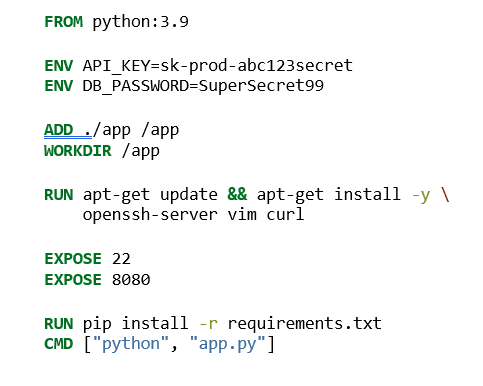
An unpinned base image, two hardcoded secrets, ADD instead of COPY, an SSH server and port 22 exposed, no non-root user, no health check. A textbook problem set.
The fastest useful scan: --scan-only
If you just want the findings and a score with no API key and no model, run scan-only:

DockSec runs Hadolint, prints the lint issues with file and line numbers, computes a local security score, and ends with a consolidated summary: a severity table, the score with a rating, a "quick take" action block, the reports it wrote, and a suggested next command. For this file, the configuration penalties—hardcoded credentials, root user, sensitive port, ADD—pull the score down hard. Hardcoded secrets alone cap the overall score, so this file lands firmly in "POOR" rather than being averaged into a deceptively middling number.
Scan-only mode is the one to reach for in fast CI paths and locked-down environments. It needs nothing but the local scanners.
The full picture: AI-powered analysis
To get the plain-English explanations and line-level fixes, add a provider. DockSec supports OpenAI, Anthropic, Google, and Ollama. With an Anthropic key exported:

Now the output leads with an AI analysis section grouped into vulnerabilities, best practices, security risks, exposed credentials, and remediation steps. Instead of a bare CVE list, you get statements like "hardcoded production API key exposed in image ENV layers—extractable via docker history" alongside a concrete fix: remove the ENV secret, inject it at runtime, and pin the base image to a slim, digest-referenced version. The exposed-credentials section calls out API_KEY and DB_PASSWORD by name and line. This is the difference between a scanner and a review.
If you only want the AI narrative without the scanner stack, for a quick Dockerfile critique, use: --ai-only.Scanning a built image
Dockerfiles are static; images are what actually ship. To scan an image, provide it with -i: 
This runs the AI Dockerfile analysis and the full image scan: Trivy enumerates CVEs, Docker Scout compares against the base image and suggests an updated one. The severity table now reflects real CVE counts, which for an old base image can run into the hundreds of critical and high findings.
To scan an image with no Dockerfile at all—a published image, a third-party image, anything you did not build—use image-only mode:

The Docker Scout summary here is often the most actionable single line in the whole run: it shows your target's counts, the base image's counts, and an updated base image with dramatically lower counts. Frequently, the highest-leverage fix for an image is simply moving to a newer base tag, and Scout hands you that on a plate.
By default, the image scan reports CRITICAL and HIGH. Widen or narrow it with --severity: The severity you request is part of the cache key, so widening from CRITICAL,HIGH to include MEDIUM correctly triggers a fresh scan rather than replaying a narrower cached result. You can also set a default with the DOCKSEC_DEFAULT_SEVERITY environment variable.
Real applications are rarely one container. DockSec scans an entire Compose file and every service in it: Two things happen. First, DockSec applies a curated set of Compose-level rules—privileged mode, host networking, missing resource limits, and other orchestration misconfigurations. These findings flow into the same results structure as image vulnerabilities. Second, it fans out across the services, scanning each service's image and, where a build context is defined, its Dockerfile. If you omit the path, --compose auto-detects a compose file in the current directory.
Compose findings count toward the security score in their own right, so a stack with several critical misconfigurations is scored as the serious problem it is, even if the underlying service images happen to be clean or could not all be pulled locally.
Every scan ends with the same consolidated summary, and it is worth learning to read at a glance.
- Severity table: the count of findings by level
- Security score: 0-100 with a rating from POOR to EXCELLENT
- Quick take: the few things that matter most: total findings, the top lint issue, any exposed credentials, and a nudge toward AI analysis if you ran scan-only
- Reports: which formats were written and where
- Next: a suggested follow-up command
For quieter output, --quiet reduces everything to warnings, errors, and the summary. For plain output in logs or terminals without color support, --no-color (which also honors the NO_COLOR environment variable) strips the styling.
Where reports land
By default, reports are written to ~/.docksec/results/. Override the destination per run with --output-dir ./reports, or globally with the DOCKSEC_RESULTS_DIR environment variable. Choose which formats to write with --format; more on reporting and machine-readable output in Part 4, where we take everything here and put it into a pipeline.
With scanning under your belt, the natural next question is how to make it automatic and enforceable. That is where we go next: gating builds, SARIF, and baselines.
This is the third in a five-part series. Watch for coming installments on Tuesdays.